EQ
The EQ effect consists of 6 tone control sections.
The overall transfer curve is displayed at the top. The colored dots correspond to the 6 sections. You can move them to control the section's Gain and Frequency knobs. A small version of the curve appears in the effect slot itself.
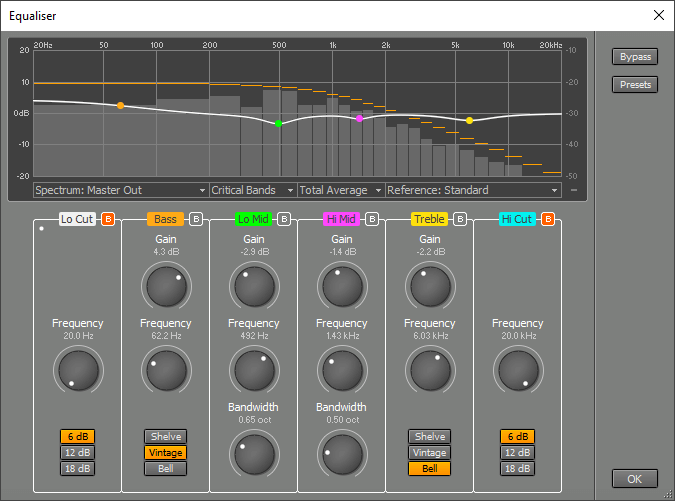 |
Each section has its own Bypass button ("B").
Lo Cut
The Lo Cut section is a low cut filter. The cutoff rate can be 6, 12, or 18 dB/octave. The cutoff frequency can range from 20 Hz to 2 kHz.
Bass
The Bass section can be a shelving or bell-type equalizer. Attenuation/boost ranges from -12 dB to +12 dB. Frequency can range from 20 Hz to 1 kHz. If the Vintage button is active, the equalizer follows the classic Baxandall curves: cutting low frequencies will be accompanied by a slight boost in the lower mid range, and vice versa. If the Shelve button is active, no dipping or peaking will occur. If the Bell button is active, the equalizer will affect a one-octave band only.
Lo Mid
The Lo Mid section is a parametric equalizer. The center frequency can range from 50 Hz to 2 kHz. The bandwidth ranges from 0.05 to 2 octaves. Gain ranges from -12 dB to +12 dB.
Hi Mid
The Hi Mid section is a parametric equalizer. The center frequency can range from 500 Hz to 12 kHz. The bandwidth ranges from 0.05 to 2 octaves. Gain ranges from -12 dB to +12 dB.
Treble
The Treble section can be a shelving or bell-type equalizer. Attenuation/boost ranges from -12 dB to +12 dB. Frequency can range from 1 kHz to 20 kHz. If the Vintage button is active, the equalizer follows the classic Baxandall curves: cutting high frequencies will be accompanied by a slight boost in the upper mid range, and vice versa. If the Shelve button is active, no dipping or peaking will occur. If the Bell button is active, the equalizer will affect a one-octave band only.
Hi Cut
The Hi Cut section is a high cut filter. The cutoff rate can be 6, 12, or 18 dB/octave. The cutoff frequency can range from 500 Hz to 20 kHz.
Spectrum Display
The frequency spectrum of the audio signal can be shown in the graph. This can be very helpful when setting up the EQ.
There is a Spectrum box below the graph. More options appear after you select a signal for display:
- EQ input
- EQ output
- Master section output (if the EQ is used in the mixer's Master section) (Pro edition only)
- Band Effect in/output (if the EQ is used in a Band Effect) (Pro edition only)
The spectrum can be shown using:
- No Bands: high resolution, but of little psychoacoustic value.
- 1/3 Octave Bands: similar to Critical Bands at higher frequencies, but with higher resolution in the lower range.
- Critical Bands: this reflects how the human ear perceives sound.
The real-time behavior can be one of the following:
- Real Time: this option looks nice but isn't very helpful for setting up the EQ.
- Average: a moving average is displayed.
- Total Average: the full average is displayed.
Averages will be reset automatically when either the transport is started or the EQ window opens. You can also reset the averaging manually by pressing the F5 key (Windows) / Command-R (Mac).
The full-scale value can be set between -30 and 0 dB. Use the mouse to move the graph up or down. The scale can be set to either 10 or 20 dB per division using the button in the bottom-right corner or by pinching on your trackpad.
Reference Spectrum
A reference spectrum can be displayed. This can help when setting up the EQ for mastering purposes. You can compare the song's spectrum to other songs you've created or to commercial recordings.
The built-in Standard reference spectrum is typical of many well-mastered recordings.
You can click the Reference box and choose "Import..." to extract the spectrum from an audio file. Alternatively, you can drop a file onto the Reference box. The new spectrum will be added to the list, and it can be renamed or deleted just like presets (right click).