Early Windows Drivers
Note: this driver type is available for Windows only.
This options uses classic Windows audio driver types. Latency is very high and there's no Soft Monitoring. Multichannel recording isn't possible using this driver type.
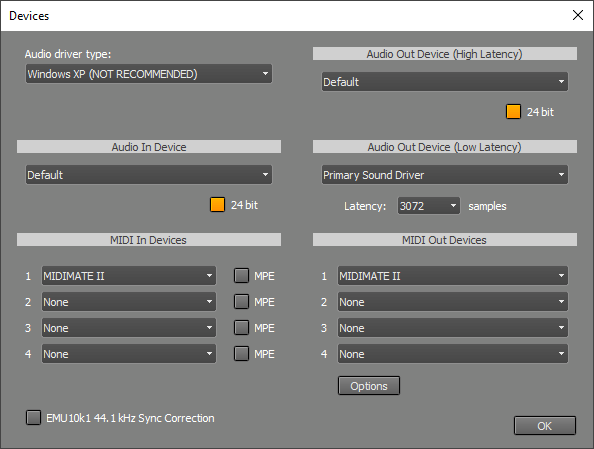 |
In the Audio In Device section you can select the device that is used for audio recording.
In the Audio Out sections you can select the devices that will be used for audio playback.
In the Audio Out Device (High Latency) section you can select the device that will be used when there is no recording MIDI soft instrument. The devices listed are MME devices (which are very reliable, even when CPU usage is high).
In the Audio Out Device (Low Latency) section you can select the device that will be used when there are one or more recording soft instruments. The devices listed are DirectSound devices (which can have a lower, but still significant, latency).
In general you will use MME and DirectSound devices that use the same sound device. MultitrackStudio will automatically use the appropriate device.
The 24 bit buttons can be used to enable 24 bit recording/playback. It's recommended to enable this only if the sound device actually supports it, if it doesn't the sound device's driver may perform bad or even crash your computer in some cases.
In the MIDI In Devices section you can select the device that is used for MIDI recording.
In the MIDI Out Devices section you can select the device that is used for MIDI playback. The 'Default' option uses the default Windows MIDI output device.
It's a good idea to use Audio In and Out devices that are on the same sound device. If they're not their sample rates probably aren't equal. This can be quite a problem, as recorded tracks will slowly go out-of-sync during playback.
If necessary you can use the Sample Rate Converter to correct the sample rate of every recorded track. To determine the required sample rate you should record a playing track. Use the track's editor to determine the timing difference between those two tracks (at the end of the track). The new sample rate is equal to original sample rate multiplied by the playing time of the original track and divided by that of the recorded track.
Creative Labs SoundBlaster Live! sound devices (and its cheaper brothers like 128, 512, 1024, Ensoniq AudioPCI) use a slightly higher sample rate for recording than for playback at a sample rate of 44.1 kHz. MultitrackStudio features a unique compensation for this effect. This compensation can be turned on by checking the EMU10k1 44.1 kHz Sync Correction box.
When using a sample rate of 48 kHz this problem does not occur, and the 'EMU10k1 44.1 kHz Sync Correction' setting has no effect.