Editing Tracks
Each track has an editor that can be opened using the Edit button located on the right hand side of the track. MIDI tracks are capable of editing individual events when viewed as Pianoroll, Score or Drum (see MIDI Event Editing). The Controller Editor can be used to edit MIDI controllers like Volume or Sustain.
Common track editor buttons
Track Editors feature the following buttons:
- Undo: Undo edit.
- Redo: Redo an edit that was undone previously.
- Edit: Shows an Edit Control window. Using this window volume changes, fades etc. can be applied to the selected part. Edit Controls can have different features on different editors.
- Delete: Deletes the selected part.
- Copy: Copies the selected part to the clipboard.
- Paste: Paste from the clipboard to the editor. The data on the clipboard will be placed at the current transport position (that's where the needle is).
- Sel All: Selects the whole track.
The More button offers:
- Cut: Copies the selected part to the clipboard and then deletes the selected part.
- Merge Paste: Works like Paste, but existing data is not deleted.
- Repeat: Repeats the selected part a number of times.
- Export: Save the selected part to a new file.
Moving audio or MIDI between tracks.
Data can be copied to another track by dragging and dropping, or by using the clipboard functions. In either case MultitrackStudio automatically converts between mono and stereo audio if necessary. MIDI is converted to audio and vice versa automatically as well. Audio to MIDI conversion works with monophonic (ie. just one note sounds at a time) audio only. The reliability of the note recognition process depends on the audio signal. Some editing will typically be necessary to fix some errors.
MIDI to audio conversion makes use of a software instruments. This software instrument appears on the Edit Control window of the receiving track.
Using an editor's Cut, Copy and Paste options you can move or copy a part to this or another editor. This process uses the clipboard. MultitrackStudio doesn't use the operating system clipboard, but temporary files instead.
Audio/MIDI Clips
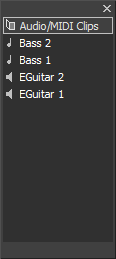 |
Pieces of audio or MIDI can be dragged from track editors to the clip shelf and vice versa. Clips can be removed by dragging them to the Garbage Bin in the bottom left corner of the window.
Dropping audio/MIDI files on track editors
Audio and MIDI files can be dragged from File Explorer (Windows) / Finder (Mac) to a track's editor. Some plugins allow dragging audio or MIDI from their user interface to a track editor as well. The sample rate of audio files will be converted to the song's sample rate if necessary. "ACIDized" wav files will converted to the song tempo.